
Bot control
Limits automated tools, scanners, and fake browsers.
A plain-English guide to the controls that protect your WordPress site—from browser and bot security to firewall and runtime enforcement.
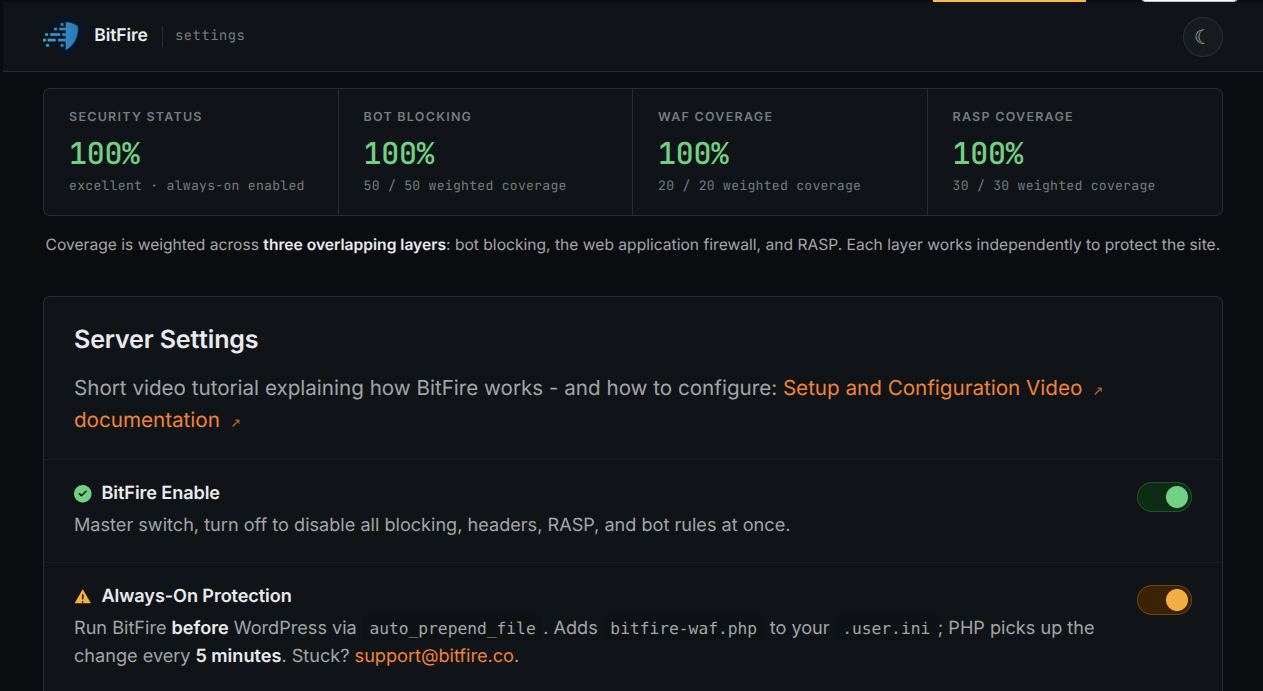
Real attacks do not all look the same. BitFire layers controls so that if one defense does not stop an attack, another still can.
Limits automated tools, scanners, and fake browsers.
Blocks malicious requests before WordPress processes them.
Hardens how visitors' browsers interact with your site.
Stops dangerous file, database, account, and network actions.
BitFire PRO adds early loading, daily malware scanning, and runtime protection for new, targeted, or previously unknown attacks.
| Capability | FREE | PRO |
|---|---|---|
| Bot blocking & verification | Included | Included |
| Web attack blocking | Included | Included |
| Always-On Protection | — | Included |
| Daily malware scans | — | Included |
| RASP / zero-day protection | Outer-layer protection | Real-time runtime controls |
| Best fit | Personal and brochure sites | Business-critical sites |
Control the main BitFire service, background monitoring, malware scanning, and reports.
The master switch. Turning it off stops bot blocking, security headers, firewall filtering, and RASP protections. Use it only when you need to temporarily disable BitFire for troubleshooting.
Loads BitFire before WordPress and the rest of the request. This extends protection beyond normal page loads and gives vulnerable code less opportunity to run.
Records PHP warnings and errors from plugins, themes, and WordPress. It is useful for diagnosing broken updates and plugin conflicts, and automatically turns off after 24 hours to conserve disk space.
Runs a scheduled daily scan for suspicious files, hidden backdoors, and signs of compromise—including new infections that may not yet have a known attack signature.
Sends summaries of malware findings, blocked requests, PHP errors, and site health. Use an address you check regularly, especially if you do not sign in to WordPress every day.
Reduce browser-side risk, unsafe embedding, and insecure connections. These controls complement—not replace—the firewall.
Sends a standard group of headers that block framing attacks, disable unsafe content sniffing, and reduce unnecessary referral data.
Restricts browser features most sites do not need, including microphone, camera, geolocation, and payment APIs. If malicious code runs in a visitor's browser, it has fewer capabilities.
Prevents other websites from embedding your pages or making certain browser requests across domains, reducing clickjacking and related abuse. Review this setting if a trusted third party must embed or call your site.
Instructs browsers to always use HTTPS and never fall back to HTTP. Enable it only after your certificate and HTTPS pages work correctly.
Test the homepage, wp-admin, login, checkout, and forms over HTTPS. If the certificate later expires or breaks, visitors may be locked out.
Separate real browsers from scanners, credential-stuffing tools, scrapers, spam tools, and fake visitors before they reach sensitive WordPress features.
Requires new visitors to pass a lightweight JavaScript check before forms and restricted actions. Real browsers usually pass automatically; scripts and many hacking tools fail.
Limits bots to viewing pages and explicitly allowed resources. This prevents unknown automation from logging in, submitting forms, calling sensitive APIs, or testing exploit paths.
Immediately blocks known scanning and attack tools such as WPScan, sqlmap, nikto, and nmap. These tools rarely have a legitimate purpose on a live business site.
Returns misleading results to fingerprinting tools, making it harder to identify your plugin stack and match it to known vulnerabilities.
Rate-limits abusive IP addresses sending too many requests in a short time, reducing server strain during automated traffic floods.
If a trusted API, uptime monitor, or integration is blocked, adjust its rule on the Bot Control page instead of disabling bot protection globally.
The WAF inspects URLs, form submissions, cookies, and uploads for attack patterns before WordPress or a vulnerable plugin can process them.
Blocks path traversal, server-side request forgery, server-side includes, XML entity attacks, and similar exploit patterns.
Stops cross-site scripting attempts that inject malicious JavaScript into your site or a visitor's browser.
Stops SQL injection in query strings, form data, and cookies before an attacker can read, modify, or destroy database content.
Scans uploads before they are written to disk for web shells, malicious code, and other dangerous payloads.
This is BitFire's strongest protection against zero-day attacks. Instead of relying only on a recognizable request, RASP watches what WordPress and PHP actually attempt to do.
Loads BitFire as early as possible.
Stops unauthorized protected operations.
Finds suspicious files and hidden changes.
Stops unauthorized file changes before malware, backdoors, or infected PHP files can be written. This directly limits zero-day exploits that attempt to drop malicious code.
Monitors database activity for unauthorized account changes, privilege escalation, and suspicious writes—including attempts to create hidden administrator accounts.
Blocks outbound calls to known malicious command-and-control systems, preventing compromised code from calling home or downloading more malware.
Confirms sensitive administrator actions are backed by real authentication, helping stop authentication-bypass exploits from becoming administrator access.
Control internal storage, visitor identification, networking, and diagnostics. Most administrators should leave these settings at their detected defaults.
System defaults are selected for broad compatibility. BitFire support or your hosting provider can advise on unusual proxy, cache, or clustered hosting setups.
Selects BitFire's internal data cache. SHMOP is preferred when available; JSON is the file-based fallback.
Safely coordinates simultaneous updates. It is normally auto-detected and only needs adjustment for specialized hosting.
Selects the recursive DNS server used to verify genuine bot networks.
Sets the status sent to blocked visitors. A 401 or 403 response is appropriate in most cases.
Identifies the true visitor IP behind Cloudflare, a CDN, or reverse proxy. A wrong value can make many visitors appear to share one IP.
Sets the browser verification status code. 401 or 428 can help prevent proxies from caching the challenge.
Logs internal BitFire errors and can forward them to the development team for easier diagnosis.
Writes detailed diagnostics. Use it temporarily when support requests troubleshooting information.
Deletes caches, counters, and saved IP state after major network or configuration changes.
BitFire is strongest when each layer handles the job it is designed to do.
Decides who should be trusted to interact with the site.
Inspects what visitors and automated tools are sending.
Hardens how the browser handles your site.
Watches what the application does on the server.
Show what was blocked and what needs attention.
Start with the narrowest applicable setting instead of disabling all protection.
Check PHP error logging first. Then review the dashboard and select: "Quick filter" -> "All blocks". Look for anything releated to the service. If you find something, expand the block and click the "allow" button in the action list to add an exception for this case. You should also search for the service name in the bot control page and see if a bot matching the service has been blocked. If you find a blocked service that you require - click on the "allow" button to allow that bot to access your site normally.
Confirm Remote IP Source is configured correctly. Review the dashboard logs and confirm that IPs are not all the same. If BitFire sees the proxy address instead of the real visitor, bot detection and rate limiting may group unrelated visitors together and coupld become in-effective. If thisis the case update the remote IP source in the system section of the settings page.
Review blocked and requests in the dashbaord reporting. Open the dashbaord and scroll through some requests. Make sure that requests for "verified" browsers are working and requests for "fake" browers are larely blocked. You can review all blocks by selecting "All blocks" from the Quick filter. Normal visitors should remain unaffected while scans, login abuse, and repeated bot requests are detected. Good security is often quiet.
Test critical site features between each stage.
BitFire PRO combines early loading, runtime enforcement, and daily malware scanning for business-critical WordPress sites.