
Recommended process
Tune a rule safely
- Confirm which feature failed.
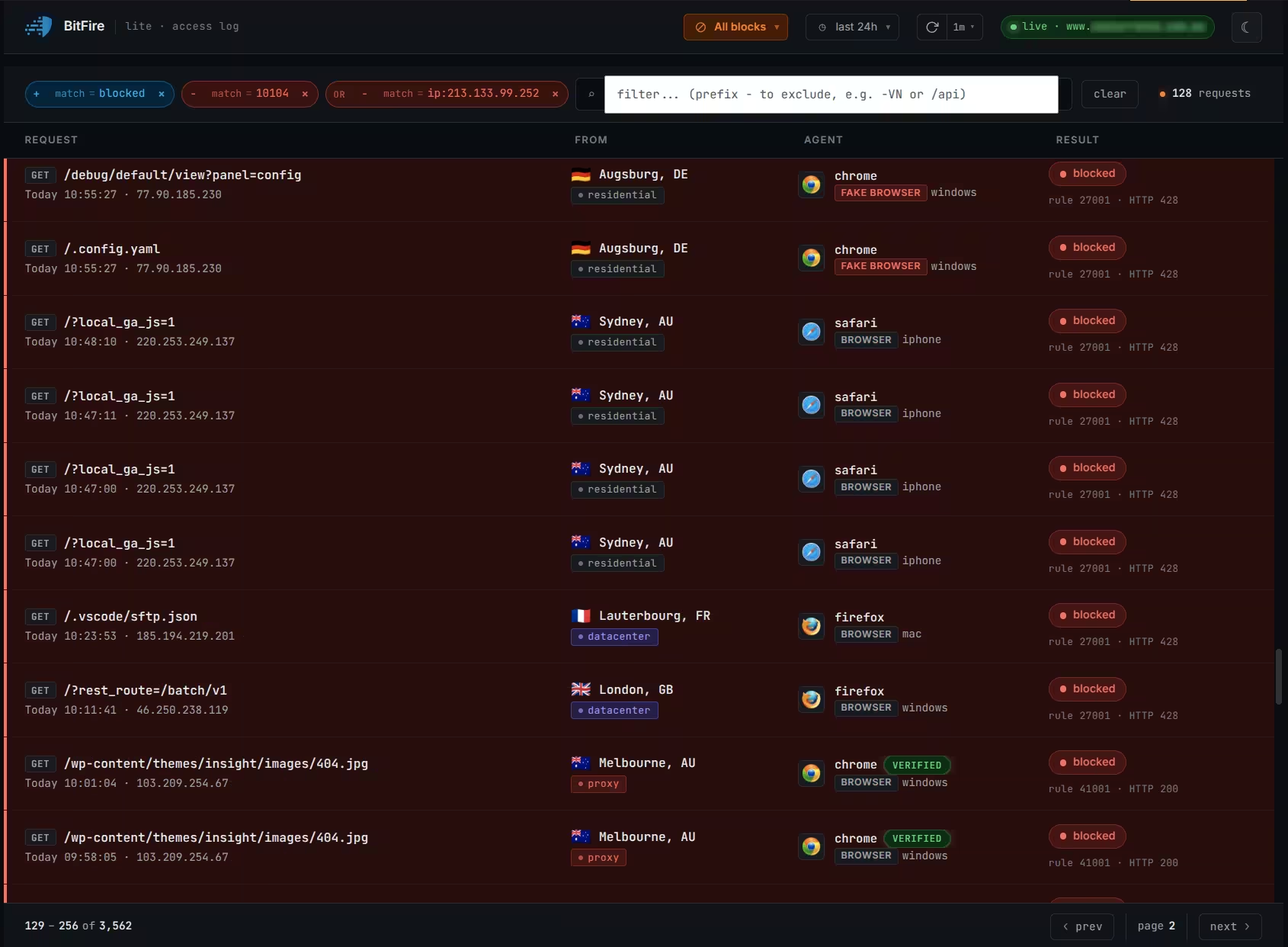
- Find the matching blocked request.
- Review its time, URL, and source.
- Select Allow when available.
- Let BitFire choose a narrow exception.
- Test the same feature again.
Allow a trusted website feature, plugin, or connected service without turning off protection for everyone else.
An exception tells BitFire that one specific type of trusted activity is expected. Other firewall, bot, and RASP protections remain available to stop malicious requests.
When BitFire is first installed, it learns how verified people normally use your theme, plugins, forms, and connected features.
Normal requests from real browsers that pass BitFire's JavaScript check can be learned.
A bot is not trusted merely because it visits during the learning period.
Learning mode does not permit obvious attacks, exploit attempts, or dangerous behavior.
Use the request details whenever possible. BitFire can examine the block and choose a suitable URL- or parameter-level exception.
Perform the failing action in the fresh browser. When the block page appears, copy its block ID. It begins with U: and looks like U:xxxxx.
Open the BitFire dashboard in your administrator browser. Paste the complete U:xxxxx ID into the search box and press Enter.
The dashboard automatically adds a filter for your own IP address. If the request does not appear, remove that IP filter and search for the block ID again.
Confirm that the URL, time, and action match the visitor, plugin, or service you were testing.
BitFire creates the narrowest suitable exception for the rule that caused the block.
Return to the fresh browser, repeat the original action, and confirm that it now works.
Allows the expected request while keeping the rule active elsewhere.
Trusts more traffic than the feature may require and increases risk.
The Rule Tuning page shows rules created during learning and rules created after an administrator allowed a blocked request.
BitFire observed verified human activity during the first three days and recorded the required behavior.
An administrator reviewed a block and selected Allow from its expanded details.
Check saved exceptions after removing a plugin, ending an integration, or replacing a service. Keep an exception only while the website still needs the feature that created it. If you do not recognize a rule, do not make it broader.
Use the Allowed IP address or user-agent field for a trusted automated service that cannot complete browser verification.
Use a stable address confirmed by the service provider. It should identify the service you trust—not merely its cloud hosting company.
Do not use when the address:A user-agent is only a name sent by software. An attacker can copy a familiar browser, crawler, or monitoring-service name.
Use only when:Confirm the service is required.
2Obtain its confirmed IP address or exact user-agent.
3Enter it in Allowed IP address or user-agent.
4Select Add allow rule, then test the service.
A manual IP block is useful for a confirmed, persistent source with a stable address. BitFire handles most hostile traffic automatically.
Use the IP shown in the matching BitFire request details.
Paste it into the IP address to block field.
Then check that normal visitors and services remain unaffected.
In BitFire, anonymous means a browser that has not completed verification or a bot that remains Restricted.
A normal browser can still be verified even when the person has no WordPress account.
The request has not passed browser verification or belongs to a restricted bot.
A real visitor normally passes these restrictions through BitFire's background JavaScript check. A trusted bot can be moved to Allow in Bot Control. Anonymous exceptions are for individual public resources that must work without either option.
Copy the exact name or path from a legitimate blocked request and allow only the resource the feature requires.
A GET parameter adds information to a web address. In example.com/sale?campaign=spring, campaign is the parameter name.
A public link, search, advertising service, or email campaign needs one known parameter. BitFire already includes common tracking parameters from Google, Facebook, Instagram, and others.
A direct PHP request opens a .php file instead of a normal WordPress page. Attackers frequently probe plugin and theme files this way.
Trusted software specifically documents that one PHP file must be publicly accessible. Confirm the file belongs to an installed plugin, theme, or application.
Forms, payment notifications, webhooks, and integrations use POST requests to send information to WordPress.
A trusted service that cannot complete browser verification must submit information to one specific URL.
Plugins use AJAX to update part of a page without reloading it. These requests often pass through admin-ajax.php with an action name.
A public plugin feature or trusted service needs one exact action without browser verification.
The WordPress REST API lets plugins and external services exchange information. Its addresses usually contain /wp-json/.
A trusted integration or public feature needs one exact API endpoint without browser verification.
| Situation | Best place to start |
|---|---|
| A real visitor triggered a firewall rule | Open the request and select Allow |
| A recognized bot needs more access | Bot Control |
A known value after ? is blocked | Anonymous GET parameter |
| A plugin requires one public PHP file | Anonymous PHP script |
| A form, webhook, or service submits to one URL | Anonymous POST URL |
| A public plugin feature calls WordPress AJAX | Anonymous AJAX action |
| An integration uses one API route | Anonymous REST API endpoint |
| You do not recognize the request | Leave it blocked |
Testing confirms that the exception solved the right problem and helps you avoid keeping rules the website does not need.
Test only the feature that originally failed.
Use incognito mode when the feature is intended for new visitors.
Confirm login, forms, checkout, or other connected actions still work.
Return to the dashboard and check the service's next request.
Reproduce the problem once in a private window. Find the matching block. If the form uses a public AJAX action or POST URL, allow only that action or URL instead of a broad user-agent.
Compare the monitor's requests with its documented IP addresses or user-agent. Prefer Bot Control or a verified stable IP. Use a user-agent rule only when the service cannot be identified more reliably.
Identify the name after the question mark and confirm it belongs to your email or marketing service. Add only that name to Anonymous GET parameters—not the whole URL or changing campaign value.
Determine whether it uses a POST URL, AJAX action, or REST API endpoint. Confirm the exact destination in the plugin documentation and blocked request, then allow only that destination.
Leave it blocked. Direct requests to unknown PHP files are common vulnerability scans. Create an exception only when trusted software documents that public access is required.
Quick answers for safely managing exceptions on a WordPress website.
No. Most blocks are unwanted and require no action. Add an exception only to repair a legitimate feature that you recognize and use.
BitFire still blocks clearly malicious activity. It also learns only from browsers that pass JavaScript verification, so automated services may need Bot Control or separate Rule Tuning configuration.
No. It permits the listed resource through the matching bot restriction. WordPress permissions and BitFire's other security checks still apply.
It is less reliable than a verified IP because anyone can copy a user-agent name. Use it only for a required trusted service that cannot be identified more securely.
No. Identify and allow the service or exact resource it needs. A narrow exception preserves protection for the rest of the website.
Send the request time, URL, affected feature, and blocked-request details. Our team can help identify the narrowest safe exception.