
Pre-installation checklist
Have these ready
- An Administrator account
- A current website backup
- Access to test login, forms, checkout, and uploads
- An email address for security reports
Set up enterprise-level WordPress protection with a clear, practical process—no server administration or security experience required.
A few simple checks make setup faster and give you a safe way back if your website has an unrelated problem during installation.
Sign in as a Super Admin and install BitFire from Network Admin on the main network site.
Install BitFire directly from the WordPress plugin directory, then open its settings to begin the security setup.
Open your WordPress administration area and sign in with an Administrator account.
https://your-website.com/wp-admin/BitFire may download supporting IP and location data. This can take approximately one minute. Keep the page open while installation finishes.
When WordPress confirms installation is complete, select Activate. A BitFire shield should appear in the administration menu. Open it and select Settings.
BitFire verifies that your hosting environment supports the security features required to protect the site.
BitFire needs this item corrected before protection can safely begin.
BitFire can usually operate, but this change may improve security or performance.
Your server has met this requirement.
Some items provide a Fix button. Select it to let BitFire apply the required change, then confirm the check passes.
If the PHP SHMOP extension is available, BitFire uses it for strong performance. If it is unavailable, leave the detected fallback unchanged unless your host or BitFire support advises otherwise.
After all critical checks pass, scroll to the bottom of the setup page, select the BitFire Activate button, and wait for confirmation.
Enable the main protection layers, choose a rollout level, and test the website as a visitor would.
Turn on available General, HTTP, Bot, WAF, and RASP controls.
Leave advanced settings unchanged unless support advises otherwise.
Send security reports to an email address you check regularly.
Check WordPress files for suspicious code, hidden backdoors, droppers, and persistence mechanisms.
Open Malware Scanner, copy the emergency recovery code, and save it outside WordPress—preferably in a password manager. Then select I Understand.
Wait for file signatures to synchronize, then select Scan Files Now. Most scans finish within several minutes; larger sites may take longer.
Open Scanner to understand why a file was flagged and Diff to inspect relevant code. Allow only files you confidently recognize as safe.
Select the files of greatest concern, up to the limit shown by the scanner, and select Analyze Files. The free scanner supports up to 12 selected files.
The file appears legitimate and may be automatically allowed.
The code needs a closer review and more context.
The file contains behavior strongly associated with compromise.
AI analysis is an additional review tool, not a replacement for administrator judgment. If a first analysis reports suspicious or malicious behavior, select Re-analyze for a more detailed review. If a second analysis confirms malware, contact support@bitfire.co before making broad file changes.
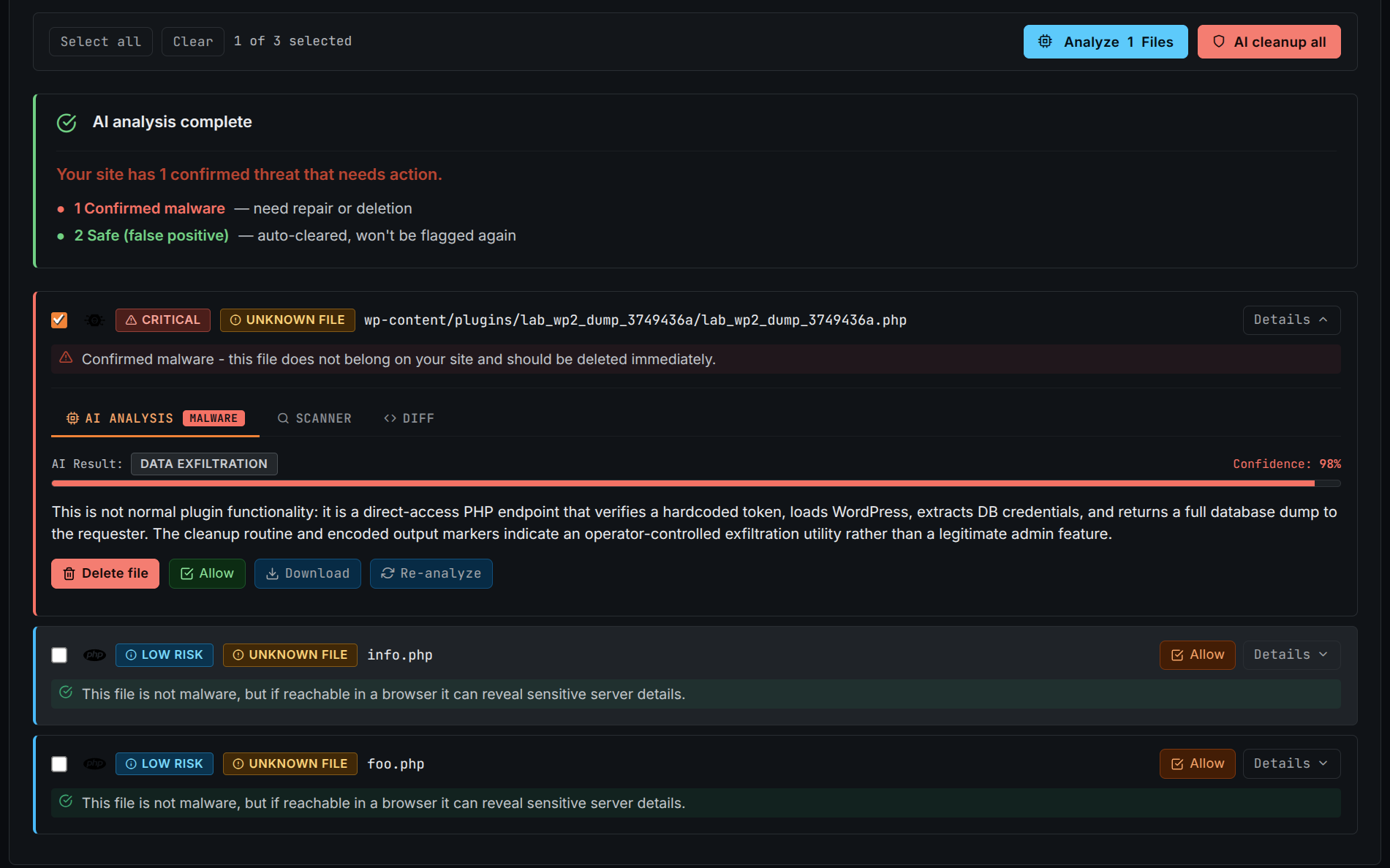
If deleting an infected file causes the website to fail, BitFire attempts to identify the recently quarantined file and asks for your recovery code.
When uncertain, do not delete the file. Professional review is safer than removing a required plugin, theme, or WordPress file without a recovery plan.
BitFire observes normal pages, request parameters, and API endpoints while continuing to block clearly malicious activity.
Known attack tools and clearly hostile requests are blocked immediately.
BitFire records how visitors, plugins, and approved services use the website.
Unknown bots receive restricted access and unusual browser requests may be verified.
Most people notice nothing. Someone opening an unusual URL may briefly see a browser verification screen. A real browser normally passes automatically.
Learning mode never teaches BitFire to allow known exploit attempts, hostile scans, or attack tools. They remain blocked.
After the learning period, spend a few minutes confirming that BitFire is blocking hostile traffic without interrupting the website.
Open the BitFire dashboard.
Select the All Blocks quick filter.
Review two or three pages of recent requests.
Look for website features and services you recognize.
Review browser requests with a green Verified badge.
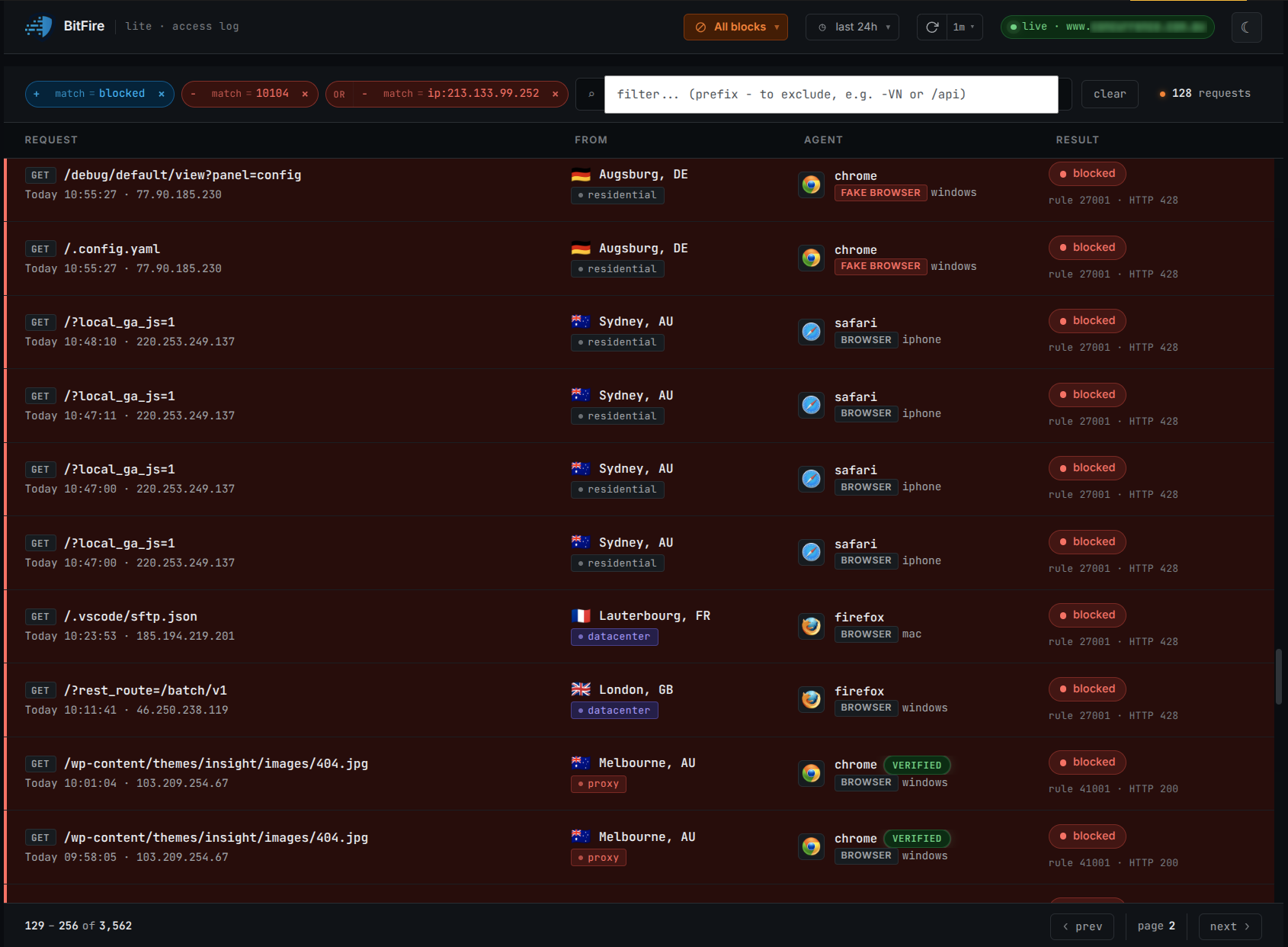
External services may need to connect automatically. Keep them restricted unless you confirm that additional access is required.
A bot tried to use a real endpoint and may need a decision.
The bot can view allowed content but cannot change the website.
A verified service can bypass applicable bot restrictions.
The bot sent requests that were classified as obviously malicious.
Confirm that your website uses the service.
Confirm that a feature is failing because its request is blocked.
Review the IP address and any available AbuseIPDB information.
Check that observed IP and DNS details match the provider.
Allow only the specific service that requires access.
Attackers often call themselves Googlebot, Bingbot, Chrome, or Safari. BitFire checks major services against expected networks and DNS records. Never create a broad exception based only on a familiar name or browser icon.
BitFire needs little daily administration. Review it when the website changes and periodically over the year.
Resolve the narrowest issue first rather than disabling all website protection.
Use the provided Fix action when available. If it still fails, send the exact message to support@bitfire.co.
Find the request on the dashboard and check Bot Control. If you recognize the action and it is safe, use Allow to create a narrow exception.
Look under Needs Review in Bot Control. Confirm the service and its IP details before allowing it.
Review the Scanner and Diff tabs, then use AI-assisted analysis. Do not delete an uncertain file. Contact support if a second analysis confirms malware.
Use the emergency recovery prompt and enter the saved code. If the prompt is unavailable or the code expired, contact support for manual recovery.
On a high-traffic site, temporarily reduce traffic coverage while reviewing requests. Allow only verified website functions and trusted integrations—never broad browser names or unknown IP ranges.
Your setup is complete when every applicable item is checked.
Contact BitFire if a compatibility check fails, malware is confirmed, or an important website feature remains blocked.